

If you are seeing the “Unable to Install Scarlet” error on your iPhone or iPad, especially when you’re ready to start using the app, you are not alone. Scarlet is a popular iOS app installer that allows you to install IPA files and apps that aren’t available on the App Store. When the installation fails, it stops you from accessing apps and features.
This error can occur for several reasons, including a revoked certificate, a poor internet connection, insufficient storage, an outdated iOS version, or an incorrect installation process. In these issues, most are easy to fix. Here, you’ll learn the common causes of the Unable to Install Scarlet error and the step-by-step solutions to install Scarlet successfully on your iPhone or iPad.
Causes of “Unable to Install Scarlet”
This error can occur for several reasons, and identifying the exact cause is the first step to resolving it. Below are the common causes why Scarlet may fail to install on your iPhone or iPad.
1. Connected VPN Interference
If you have a VPN turned on or connected on your device, it can block Scarlet from installing or verifying properly. This happens because the VPN interferes with the connection Scarlet needs to verify and install apps.
2. Revoked Certificate
This is another reason why Apple regularly revokes (blocks) certificates used by sideloading tools like Scarlet to prevent unauthorized apps. When your certificate gets revoked, your device shows an “unable to verify” or “unable to install” error because the app is no longer trusted.
3. Outdated iOS Software
If your iPhone or iPad isn’t running the latest iOS version, Scarlet may fail to install properly. Sideloading tools often need the newest software updates to work correctly with Apple’s security system.
4. Weak or Unstable Wi-Fi Connection
A poor internet connection can interrupt the installation process midway, causing it to fail. Since Scarlet needs a stable connection to download and verify app files, weak Wi-Fi is a common trigger for this error.
5. Incorrect Date, Time, or Region Settings
If your device’s date, time, or region isn’t set correctly (or set manually instead of automatically), it can confuse the certificate verification process, leading to installation errors.
6. Content & Privacy Restrictions Enabled
If “Content & Privacy Restrictions” is enabled under Screen Time, it can block installations from unknown developers, including apps like Scarlet, because the device treats them as untrusted or restricted sources.
5 Methods to Resolve “Unable to Install Scarlet”
Now that you know the common causes of this error, let’s know how to fix it. Below are five simple and effective methods to resolve the “Unable to Install Scarlet” error on your iPhone or iPad.
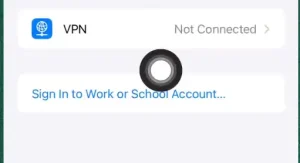
Solution 1: Disconnect Any Active VPN
-
- Open the Settings app on your iPhone or iPad.
-
- Tap General, then go to VPN & Device Management.
-
- Check if any VPN is connected and turn it off.
-
- Try installing Scarlet again.
This works because a connected VPN can interfere with the verification process Scarlet needs to install apps properly.
Solution 2: Update Your iOS Software
-
- Go to Settings.
-
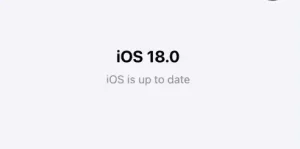
- Tap General, then select Software Update.
-
- If an update is available, download and install it.
-
- Restart your device and try installing Scarlet again.
Sideloading tools like Scarlet often need the latest iOS version to work correctly with Apple’s security checks.
Solution 3: Fix Date, Time & Region Settings
-
- Open Settings and go to General.
-
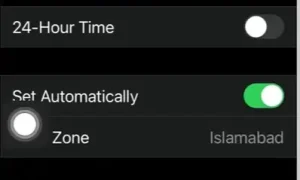
- Tap Date & Time and make sure Set Automatically is turned on.
-
- Then go back and tap Language & Region.
-
- Confirm your region matches your actual location.
Incorrect date, time, or region settings can confuse the certificate verification process, causing installation to fail.
Solution 4: Turn Off Content & Privacy Restrictions
-
- Go to Settings and tap Screen Time.
-
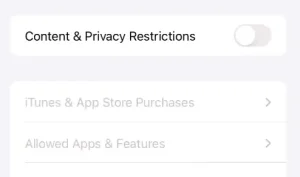
- Scroll down and tap Content & Privacy Restrictions.
-
- If it’s turned on, toggle it off.
-
- Try installing Scarlet again.
This restriction can block installations from unknown developers, which stops Scarlet from installing properly.
Solution 5: Fix a Revoked Certificate Using DNS Anti-Revoke
-
- Use a trusted DNS anti-revoke service to bypass the revoked certificate.
-
- Install the DNS profile through Settings > General > VPN & Device Management.
-
- Once installed, go back and select an active, recently signed certificate.
-
- Restart your device and allow the certificate to be trusted under VPN & Device Management.
-
- Try opening and installing Scarlet again.
This solution directly targets certificate revocation, which is one of the most frequent causes of the “unable to install” or “unable to verify” error.
Still Unable to Install Scarlet?
If you’ve tried all the solutions above and Scarlet still won’t install, the problem is most likely related to a revoked certificate, an outdated installation file, or a temporary issue with the installation method. In this case, the best option is to download the latest version of Scarlet and follow the updated installation guide on iosscarlet.com.
We regularly update our installation files and guides to reflect the latest iOS changes and working installation methods. Before trying again, make sure you’ve removed any previous Scarlet installation, have a stable internet connection, and are using the latest compatible version of iOS. Following the correct installation steps from start to finish can resolve most installation issues.
How to Avoid Future Scarlet Installation Errors
After installing Scarlet successfully, following a few simple practices can help prevent installation problems in the future.
-
- Download Scarlet from a Trusted Source: Always download the latest version of Scarlet from iosscarlet.com. Using outdated or modified installation files from unknown websites can lead to installation errors or security risks.
-
- Keep Your iPhone Updated: Install the latest compatible iOS updates whenever they’re available. This helps improve compatibility and reduces the chance of installation issues.
-
- Maintain Enough Free Storage: Before installing or updating Scarlet, make sure your iPhone or iPad has enough available storage. Low storage space can cause the installation to fail.
-
- Use a Stable Internet Connection: A strong and reliable Wi-Fi connection helps prevent download interruptions and installation errors.
-
- Turn Off Unnecessary VPNs: If you’re using a VPN, temporarily disconnect it before installing Scarlet. Some VPN connections may interfere with the installation or verification process.
-
- Remove Old Scarlet Installations: If you’re reinstalling Scarlet, delete any previous or incomplete installation first. This helps avoid conflicts and ensures a clean installation.
By following these simple tips, you can reduce the chances of seeing the “Unable to Install Scarlet” error and enjoy a smoother installation experience